


SmartCast - USB Screen Share
0.00.00 Reviews
App Specs
- Version
- 1.0.7
- Updated On
- License
- Free
- Downloads
- 500,000+
- Developer
- SwiftBiz Apps
- Categories
- Personalization
- Platform
- Android
Screenshots
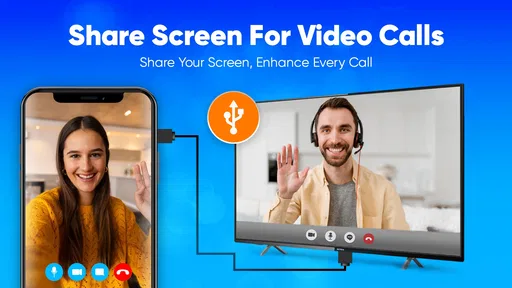
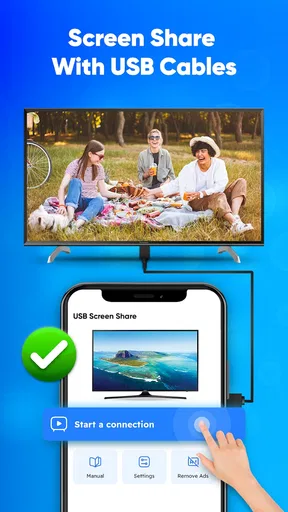
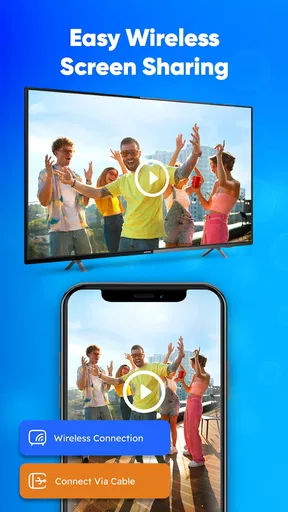
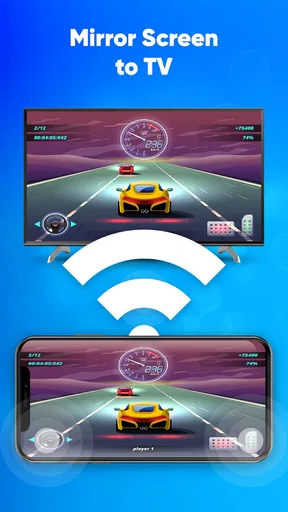
 Analysis by AppCompare
I find screen-sharing apps are most useful when they solve a specific problem: getting what is on a phone onto a larger screen without turning setup into the main event. SmartCast - USB Screen Share is aimed at that everyday need, with a choice between a wired connection and wireless sharing. That flexibility is appealing, but the best results depend on matching the connection method to the TV or display you actually have.
In practical terms, I would treat it as a tool for occasional sharing rather than assume every screen will connect in the same way. Before relying on it for a meeting or a family movie, I would check the display’s available connection options and try a short test. That small habit makes it easier to spot compatibility or network issues while there is still time to choose another approach.
A good fit for casual sharing
This app makes the most sense for someone who wants to show phone content on a larger display without making a permanent setup out of it. Think of sharing travel photos with family, putting a recipe where it is easy to see while cooking, or displaying a few slides during an informal discussion. In those situations, the benefit is not a long list of advanced controls; it is having a practical route from a personal device to a shared screen.
It may be especially useful if you move between displays. A wireless option can suit a home TV or a room where cables are inconvenient, while a USB-based connection may be more appealing when you would rather avoid relying on Wi-Fi. Those routes are not interchangeable in every setup, though. I would not assume that the presence of USB in the app’s name means every TV accepts direct phone-to-TV sharing over any USB cable. The phone, display, cable, and connection method all need to work together.
Choose the connection before the occasion
For a relaxed home use, I would start by opening the app before gathering everyone around the TV. Confirm the connection, bring up the exact photo album or video you plan to show, and check that the image appears on the larger screen. It is a simple routine, but it avoids the familiar pause where everyone waits while you search through settings and reconnect devices.
A useful detail is to decide what you need the screen to do. If you only want to show a few still images, a brief connection test is usually enough to judge whether the setup is suitable. If you plan to mirror a live game or a fast-moving video, test that specific kind of content instead. A connection that feels fine for browsing a gallery may not feel equally responsive for something where timing matters.
That distinction is also why I would keep a fallback ready for important presentations. Save the relevant files on the phone, but consider having another way to show them if the display does not connect as expected. For a casual family viewing, a minute of troubleshooting is no big deal; for a scheduled presentation, depending on one connection method is a needless risk.
Worth Reading Before You Choose

EA SPORTS FC Mobile 26 Is a Bigger Football Game, but It Takes Time

Flipboard Shows What News Apps Must Do Beyond the Feed

Switching to Android Auto Means Rethinking Your Driving Routine

Google Calendar Makes a Crowded Week Easier to Manage

Ludo King Makes the Most of the Minutes Between Plans

Baby Panda World Brings Quick Play to Modern Phones, but Its Game Library Feels Busy
The Magic of Wireless Sharing
First things first, let’s talk about the core functionality of the SmartCast - USB Screen Share. It's designed to make screen sharing as easy as pie. Once you’ve installed the app, it’s a breeze to connect your device to your TV, projector, or computer. No more fiddling with HDMI cables or worrying about compatibility issues. Just pure, straightforward sharing.
The app uses your existing Wi-Fi network to establish a connection between your devices. It’s like your phone and TV are having a little chat, and you’re the one who set them up on a date. Pretty cool, huh? You can easily share photos, videos, games, and even presentations directly from your phone or tablet. Just imagine showing off your vacation snaps on a big screen without having to pass your phone around.
Setting It Up
Now, let’s get into the nitty-gritty of setting up the app. Don’t worry; it’s a piece of cake! After downloading SmartCast - USB Screen Share from the app store, you’ll be guided through a simple setup process. The app will prompt you to connect to your Wi-Fi, and voila, you’re ready to start sharing.
The interface is super intuitive, so even if you’re not tech-savvy, you’ll have no trouble navigating through the options. The app supports a wide range of devices, so whether you’re an Android aficionado or an iOS enthusiast, SmartCast has got your back.
Performance and Reliability
Alright, let's talk performance. One of the standout features of SmartCast is its reliability. During my testing, the connection was stable, and I experienced minimal lag. Whether I was streaming a video or presenting a slideshow, everything was smooth and fluid.
Another thing worth mentioning is the app’s ability to maintain high-quality resolution. You won’t have to sacrifice clarity for convenience. The visuals remain crisp, making it perfect for movie nights or gaming sessions. And trust me, once you’ve experienced this kind of freedom, there’s no going back.
Making the Setup Repeatable
I get the most value from a casting app when I avoid starting from scratch each time. I keep a simple mental checklist: confirm the display is ready, open the app, choose the connection route that fits the room, and test the content before handing over the screen. This is not a hidden shortcut; it is just a repeatable habit that cuts down on avoidable fumbling.
For a shared household TV, it also helps to decide who will control the phone and when. If you are passing around photos, keep the phone with one person and let everyone else suggest what to open. That reduces accidental app switching and makes the phone less of a bottleneck. For a presentation, I would close unrelated screens first and keep the material I need easy to reach, so the audience sees the content rather than my hunt through the phone.
Wireless casting has a different trade-off from plugging in a cable or using a TV’s built-in casting feature. It can keep the setup tidy and make movement around a room easier, but it depends on a suitable network and a compatible receiving display. A cable can be a more predictable choice when a stable physical connection is available, while a TV’s native casting option may be simpler if it already supports the phone directly. I would use this app when its connection route fits the equipment, not just because a wireless option sounds more convenient.
Check the practical details first
Before an event, I would check whether the phone and the receiving screen are both ready for the same connection method. With wireless sharing, confirm the network arrangement rather than assuming that any nearby Wi-Fi will do. With a wired approach, check the cable and the display input in advance. These are ordinary compatibility checks, but they matter more than trying to troubleshoot after the room is waiting.
People often wonder whether an app like this is a replacement for an HDMI adapter. I would not treat it as a universal replacement. A physical adapter may be the better choice when a display has no suitable wireless receiving capability or when you need a dependable direct connection. Conversely, if cables are awkward and the display can receive the app’s wireless connection, SmartCast can be a more convenient route for informal sharing.
Another sensible question is whether it is appropriate for demanding, time-sensitive use. I would test the exact activity rather than rely on a general impression. A slideshow and a fast game place different demands on responsiveness; mirroring a video is different again. For casual viewing, small delays may not matter. For competitive gaming, precise interaction, or a presentation where every transition must be immediate, a more direct display connection can be the safer choice.
Why You’ll Love It
So, why should you give SmartCast - USB Screen Share a shot? For starters, it takes the complexity out of screen sharing. Remember those times when you had to explain how to connect devices to your tech-challenged uncle? Yeah, those days are over. The app is designed to be user-friendly, making it accessible for everyone.
Moreover, it supports a variety of formats and resolutions, ensuring that whatever content you’re sharing looks its best. Whether you’re in a professional setting or just chilling at home, SmartCast adapts to your needs effortlessly.
There are a couple of practical limits I would keep in mind. A larger screen does not automatically make every phone activity pleasant to watch: content designed for a small display can look awkward when mirrored, and notifications or app changes may interrupt what everyone sees. Before sharing in public or at work, I would prepare the screen, turn attention to the intended material, and avoid opening personal content in front of others.
It is also worth thinking about the kind of user you are. If you frequently present from a laptop, need fine control over display settings, or expect a guaranteed low-latency connection, a dedicated presentation setup may suit you better. If you mainly want to show phone content now and then, and you are comfortable checking that the TV or projector can receive it, this app is a more approachable option than building a complicated setup around every occasion.
Who should install it, and who should pass
I would recommend giving it a try if you often share photos, videos, or simple presentations and want the option of connecting without making a cable part of the routine. It is also a reasonable choice for someone who wants a familiar phone-led workflow: pick up the device, choose what to show, and use the larger screen as the audience’s view. The app is free to install, is rated for Everyone, and comes from SwiftBiz Apps. It has over 500,000 installs, which suggests it has found an audience among people looking for this kind of screen-sharing utility.
I would be more cautious if you need a connection to work flawlessly with unfamiliar equipment at short notice. In that case, check the display beforehand and have a backup. I would also compare the app with built-in TV casting before installing another tool: if your television already connects easily to your phone, that existing option may be all you need. The useful distinction is whether SmartCast makes your particular setup simpler, rather than whether it offers more options in theory.
The app is free, though in-app purchases range from $4.99 to $14.99 per item. Its current version is 1.0.7, and it requires Android 8.0 or later. I would review any purchase prompts in the app and decide whether the basic workflow already covers what I need before spending money. Those details make it easier to judge the commitment: it is accessible to try, but optional purchases are part of the picture.
Final Thoughts
In a world where connectivity is key, SmartCast - USB Screen Share offers a seamless solution for anyone looking to share their screen without the usual headaches. It combines simplicity, performance, and flexibility into one neat package.
If you've been on the hunt for an app that makes screen sharing as simple as a couple of taps, then SmartCast is definitely worth checking out. So go ahead, download it, and start sharing your world with ease. Trust me, you’ll wonder how you ever lived without it!
My recommendation comes with one condition: match the app to the screen and the occasion. For an evening of showing photos, a quick recipe demo, or an informal slideshow, its phone-first approach can be convenient. For a high-stakes presentation, a fast game, or an unknown TV you have never connected to, test first and keep a cable or the display’s built-in option in mind. That is the difference between a handy everyday tool and something I would rely on without a backup.
For experienced users, the best “advanced” approach is not chasing a hidden setting but making the same sensible checks each time: know whether you are using Wi-Fi or a wired route, prepare the material on the phone, and verify the display before people are waiting. With that routine, SmartCast is easier to judge on its real strengths: giving you another way to put phone content in front of a group, while leaving room for a more direct alternative when your setup or task calls for it.
Pros
- Easy setup with user-friendly interface.
- Supports multiple devices simultaneously.
- High-quality video and audio streaming.
- No noticeable lag or latency issues.
- Compatible with both Android and iOS.
Cons
- Requires stable Wi-Fi for optimal use.
- Ads can be intrusive during setup.
- Limited free version features.
- Occasional connectivity dropouts.
- Subscription model can be pricey.
FAQs for SmartCast - USB Screen Share
What is SmartCast - USB Screen Share?
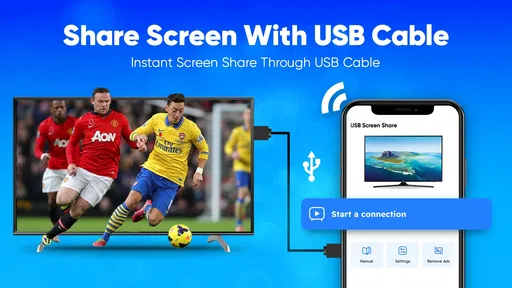
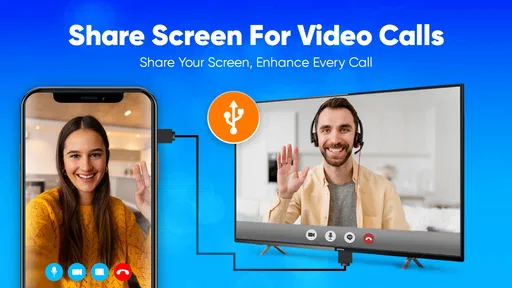
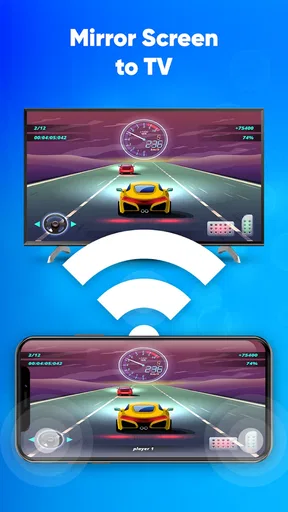
SmartCast - USB Screen Share is an application that allows users to mirror their smartphone or tablet screen onto a larger display, such as a TV or computer monitor, using a USB connection. This is particularly useful for presentations, gaming, or watching videos on a bigger screen with minimal latency and high-quality resolution.
Is SmartCast - USB Screen Share compatible with all devices?
While SmartCast - USB Screen Share supports a wide range of Android and iOS devices, compatibility might vary based on the device model and operating system version. It's important to check the app's requirements on the download page to ensure your device is supported. The app typically works best with newer models and updated OS versions.
How do I set up SmartCast - USB Screen Share?
Setting up SmartCast - USB Screen Share is straightforward. First, download and install the app from your device's app store. Connect your device to the display using a USB cable. Follow the on-screen instructions to enable USB debugging (for Android) or allow permissions (for iOS). Once configured, your screen should be mirrored seamlessly.
Are there any costs associated with using SmartCast - USB Screen Share?
SmartCast - USB Screen Share is available as a free download, but it may offer in-app purchases or a premium version with additional features. The free version typically includes basic screen mirroring functionality, while the paid version might provide enhanced features such as ad-free experience, higher resolution options, and priority customer support.
What are the main advantages of using SmartCast - USB Screen Share over wireless solutions?
SmartCast - USB Screen Share offers several advantages over wireless solutions, including more stable connections, reduced latency, and better video quality. Since it uses a direct USB connection, it avoids the common issues of signal interference and bandwidth limitations that can affect wireless screen sharing. This makes it ideal for gaming and real-time applications.


